
On the platform JAAK Can you check what your company has hired and how much have you used for each service: verifications KYCelectronic signature and other products included in your plan. Subscription centre.
- The images of this guide are illustrative examples with fictitious data. *
Where to find him
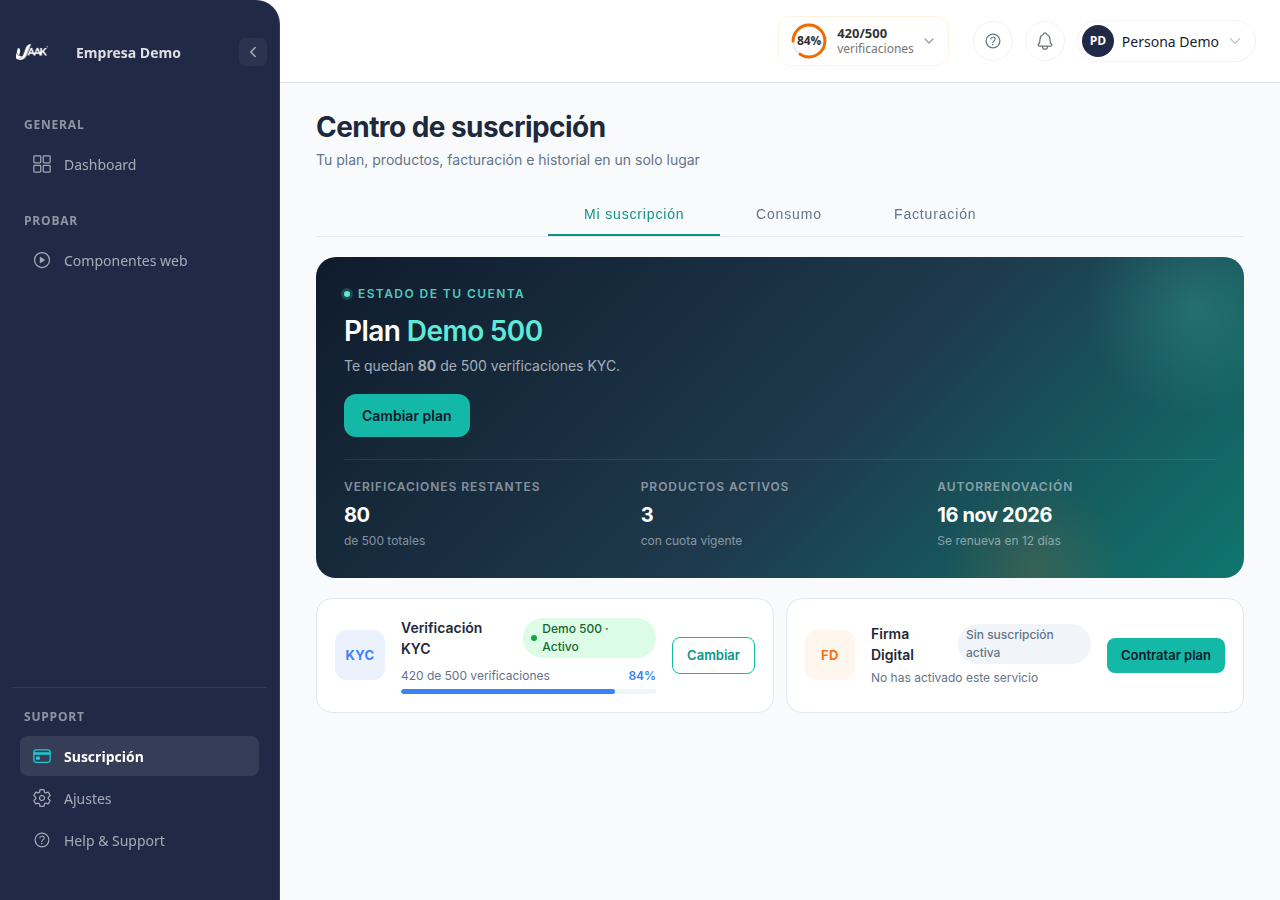
At the side menu, click Subscription. The Subscription centre with three lashes:
| Fish | What's his sample? |
|---|---|
| My subscription | The contracted plan, the checks you have and the status of each product. That's the tab that first opens. |
| Consumption | The use of your company by product and by period with the quota table and export. |
| Filling | Payments and invoices. |
Don't you see the Consumption tab?
The tab Consumption appears only for roles Owner, Administrator, Manager and ReaderIf your role isn't on this list, you won't see it.
My subscription
That tab only shows what your company's hired.
- Status of your account: name of your plan, how many checks you have left of the totals, how many active products you have with valid share and date of your next renewal. If your company doesn't have an active plan, the card says No Active Plan.
- Card by productOne for each service. Verification KYC shows a bar with the checks used. If a product isn't activated, his card says Without active subscription.
Consumption
The tab Consumption Answer three questions: what includes your plan, how much you have been using and how consumption goes with your choice.
Loan and package
- Plan contracted: the name of your plan with his Periodand Other days, Price, Next collection and Renewal.
- Packages contracted: packages your company bought from the platform with columns Package, Includes and PurchasedIf more of them are shown, use See moreThis Section only appears if your company has packages.
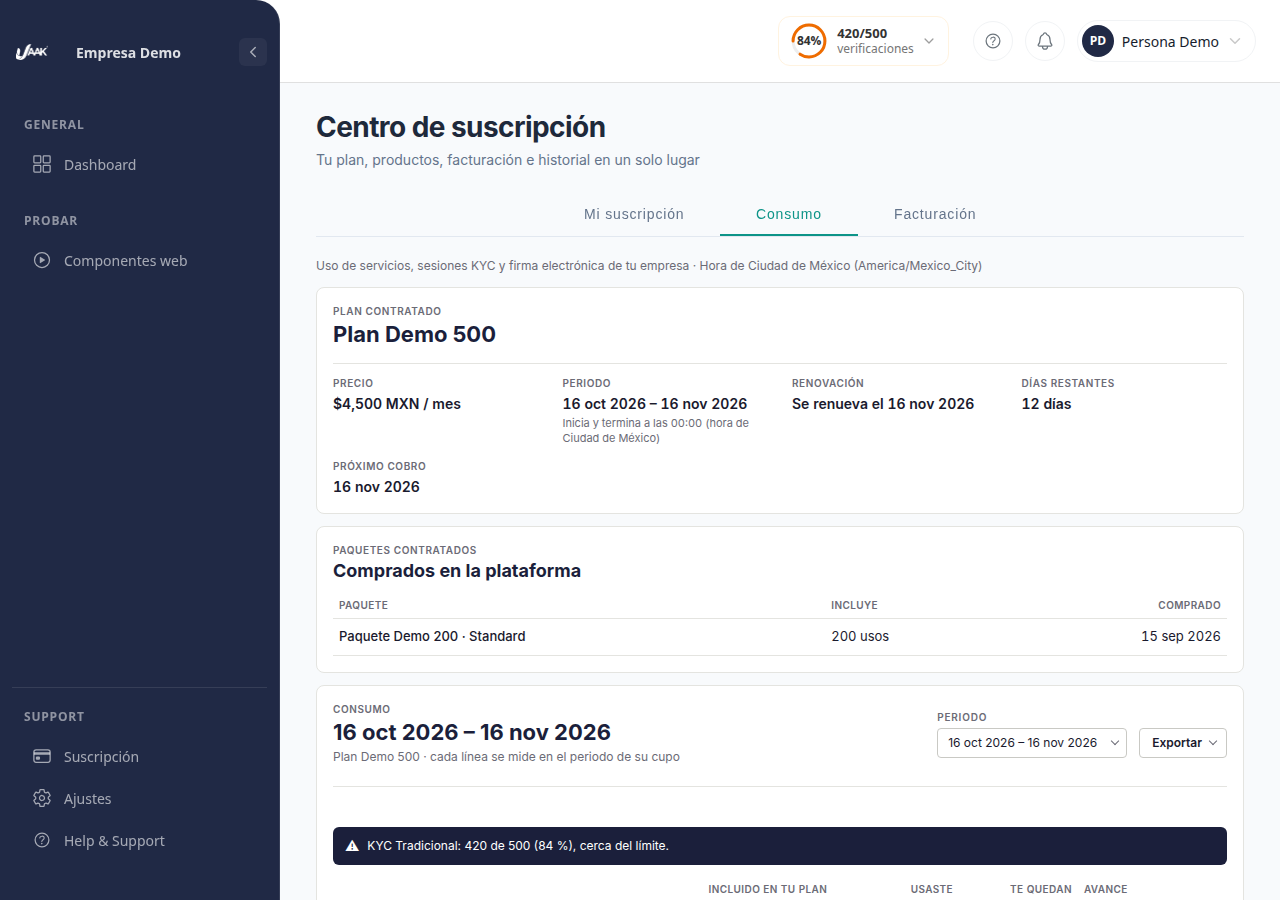
Table of consumption
Below's the card Consumption. His title changes with the chosen period and has two controls: the selector Period and the button Export.
The table sets up the lines by product and shows for each:
- Included in your plan: how many units includes your plan.
- You used: what you have consumed, as we have computed.
- That's them.: what remains of the quota.
- Progress: the bar and percentage of the quota used.
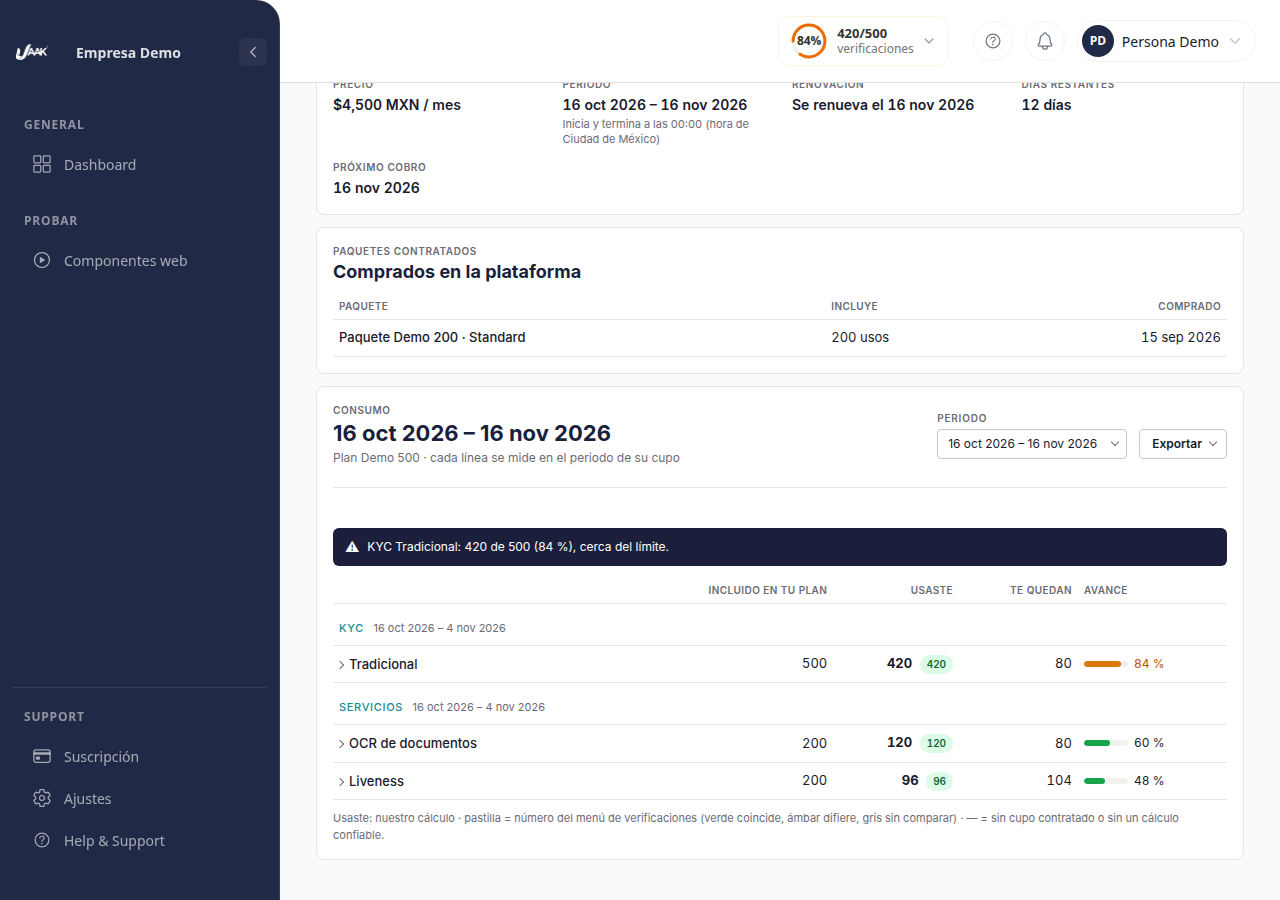
If a product reaches 80% of its quota, a notice appears at the top of the table with details, for example: *KYC Traditional: 420 out of 500 (84%), close to the limit *. If you reach or exceed 100%, the notice says exceed quota. These warnings and their statements are explain in Section What do quotas mean?.
If there was no consumption in the period, the table says No consumption at this time.
Product breakdown
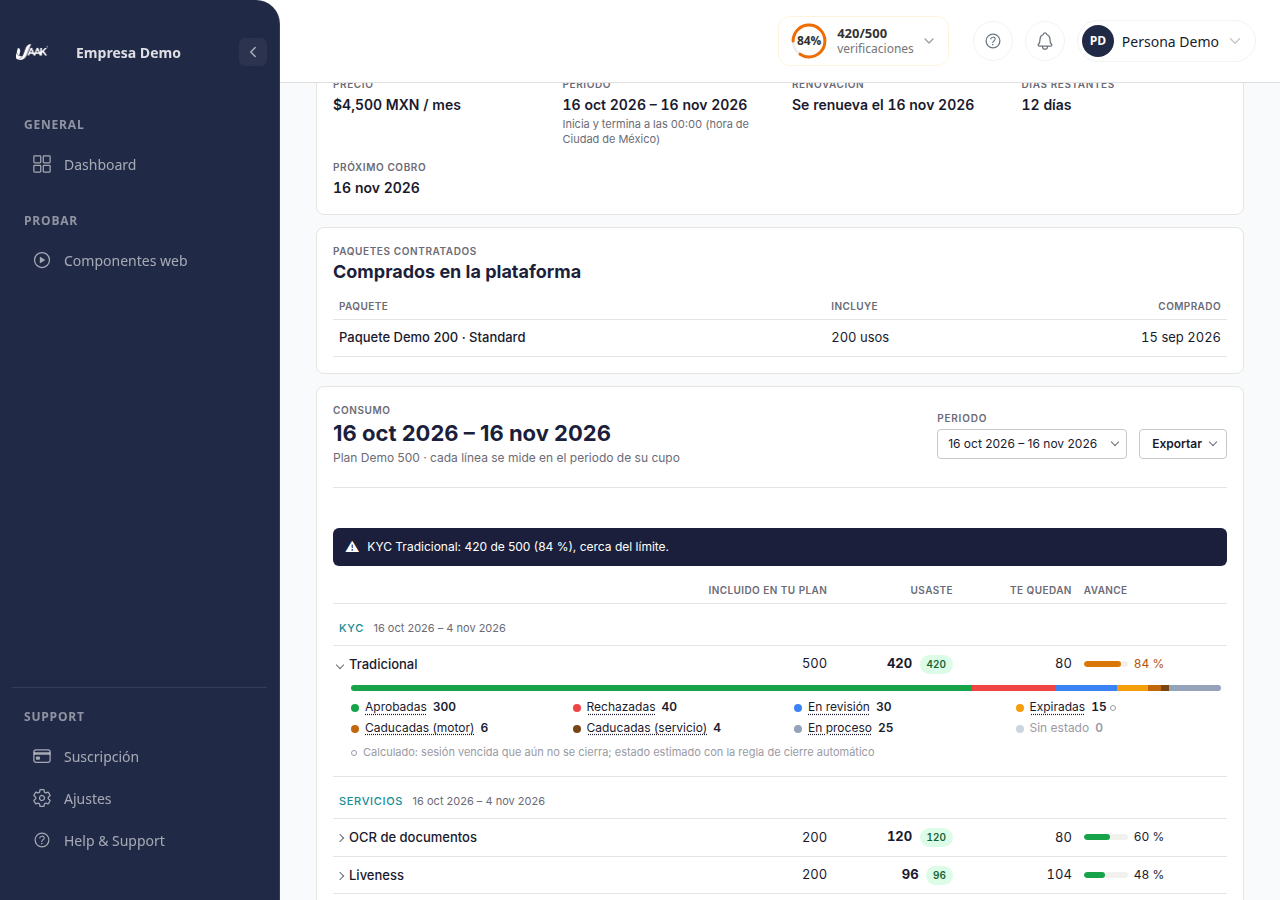
Each product with details has the button **See breakdown of [product]**When deployed:
- A bar shows the ratio of each state. KYC: Adopted, Rejected, Under review, Under way, Expand, Fitted (motor), Fees (service) and No status. In services: Success, Failed, Rejected, Under way and No status.
- Below, the list with the number of each state. If states do not add up to the total, you will see note * The breakdown sum X of Y *.
- Click a status to see your list. KYC, each row shows the meeting, nameand date of creation and date of maturity.
On the list, Back to Consumption back to the table and Prev and Next They're changing their pages.
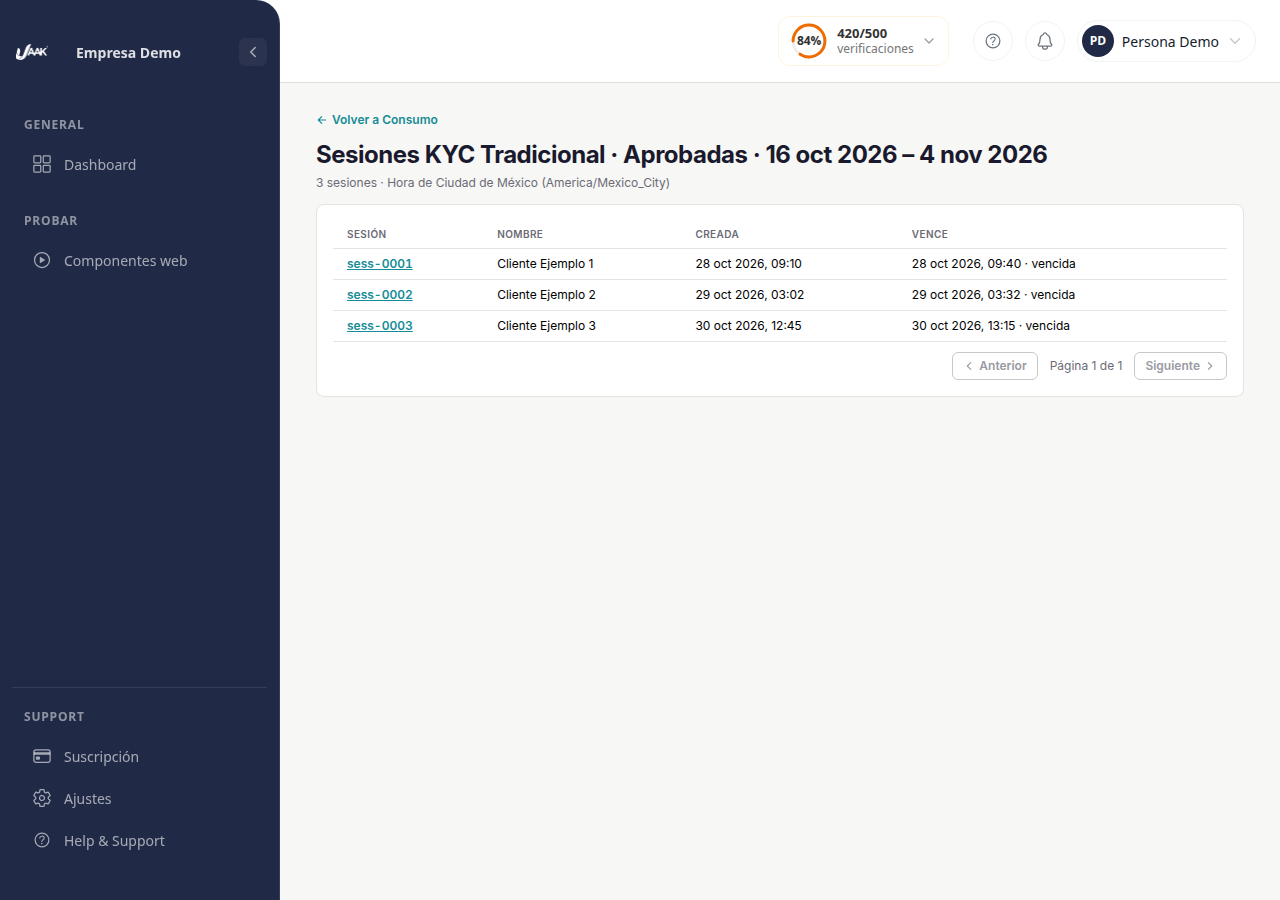
A mark Calculated with a number indicates defeated sessions that are currently closed. Your status is an estimate with the automatic closing rule.
Period
The selector Period card Consumption have three groups:
| Panel | What to choose | What's his sample? |
|---|---|---|
| Per period (default) | Your current period | The consumption within your plan period. Each service counts within your quota period. |
| Per month | A month from the list | Just consumption that month. |
| Custom | Date From and date Toand then Apply | Just the consumption of the dates you choose. |
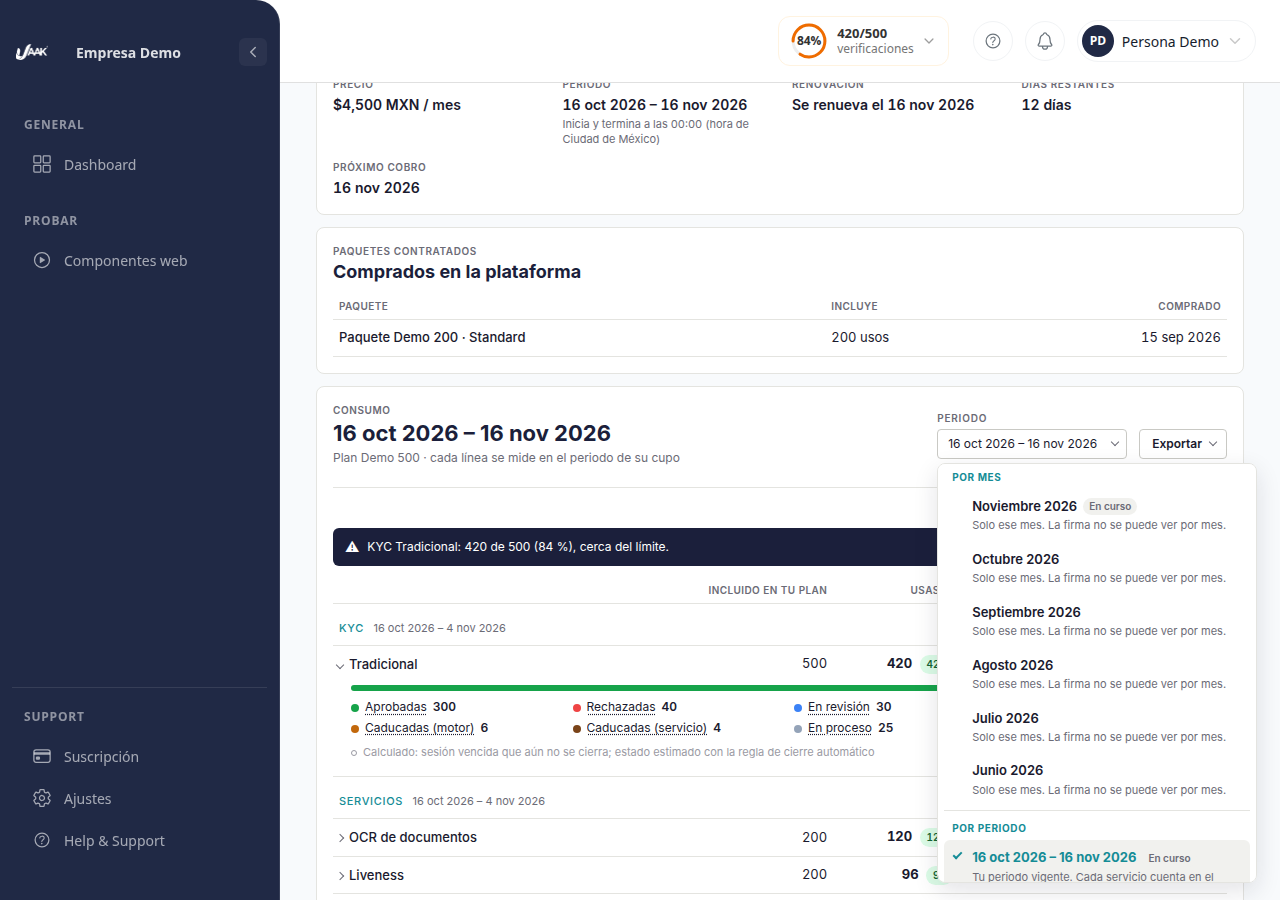
with Per period The table shows all quota columns: Included in your plan, You used, That's them. and Progresswith. Per month or Custom they only appear Service and You used, along with a note with the range of dates, because the quota is measured during your plan period.
The electronic signature isn't seen by month or range
The electronic signature consumption is only available with Per periodIf you choose Per month or Customsign lines aren't shown.
If your company doesn't have a contracted plan, the option Per period appears with note No contract plan.
What do quotas mean?
Table columns
| Column | What does that mean? |
|---|---|
| Included in your plan | Quantity that includes your contracted plan for that service throughout the period. |
| You used | What we have consumed in the period, as we have been computing with the JAAK. |
| That's them. | What's included but less used. If you have already exceeded the quota, show more units, for example 12 extra. |
| Progress | The percentage of the quota used with his bar. |
Special values
- UnlimitedYour plan has no limit to that service.
- Not includedThat service isn't part of your plan.
- —: No quota or no reliable calculation.
Notices by percentage used
| State | Percentage of quota | What will you see |
|---|---|---|
| Normal | Under 80% | No notice. |
| Near the border | 80 to 99% | I notify at the top of the table. |
| Exceeding quota | 100% or more | I notify at the top of the table. |
If the quota period has been completed, its consumption will be shown as a record and will give no notice.
Comparison with check menu
At the sight Per periodwith You used A tablet with the number of the header's check menu appears:
- Green: coincides with our calculation.
- Amber: different. When passing the cursor you will see the difference, for example * + 5 with respect to the menu *.
- Grey: No comparison available.
Two different lights
The display warnings (Near the border and Exceeding quota) are not the same light as that shown in the export report. Optimal (0 to 30%), Warning (31 to 60%) or Critical (more than 60%)
Export report
The report is generated with the period you have selected at that time.
Step 1: Choose period from select Period.
Step 2: Click Export on the card Consumption.
Step 3: Choose the format and level of detail:
| Option | What includes |
|---|---|
| Compact Excel | The same thing you see on screen, in Excel format. |
| Excel with states | The same, as well as the status breakdown of each line. |
| Compact PDF | The same thing you see on screen. |
| PDF with states | The same, as well as the status breakdown of each line. |
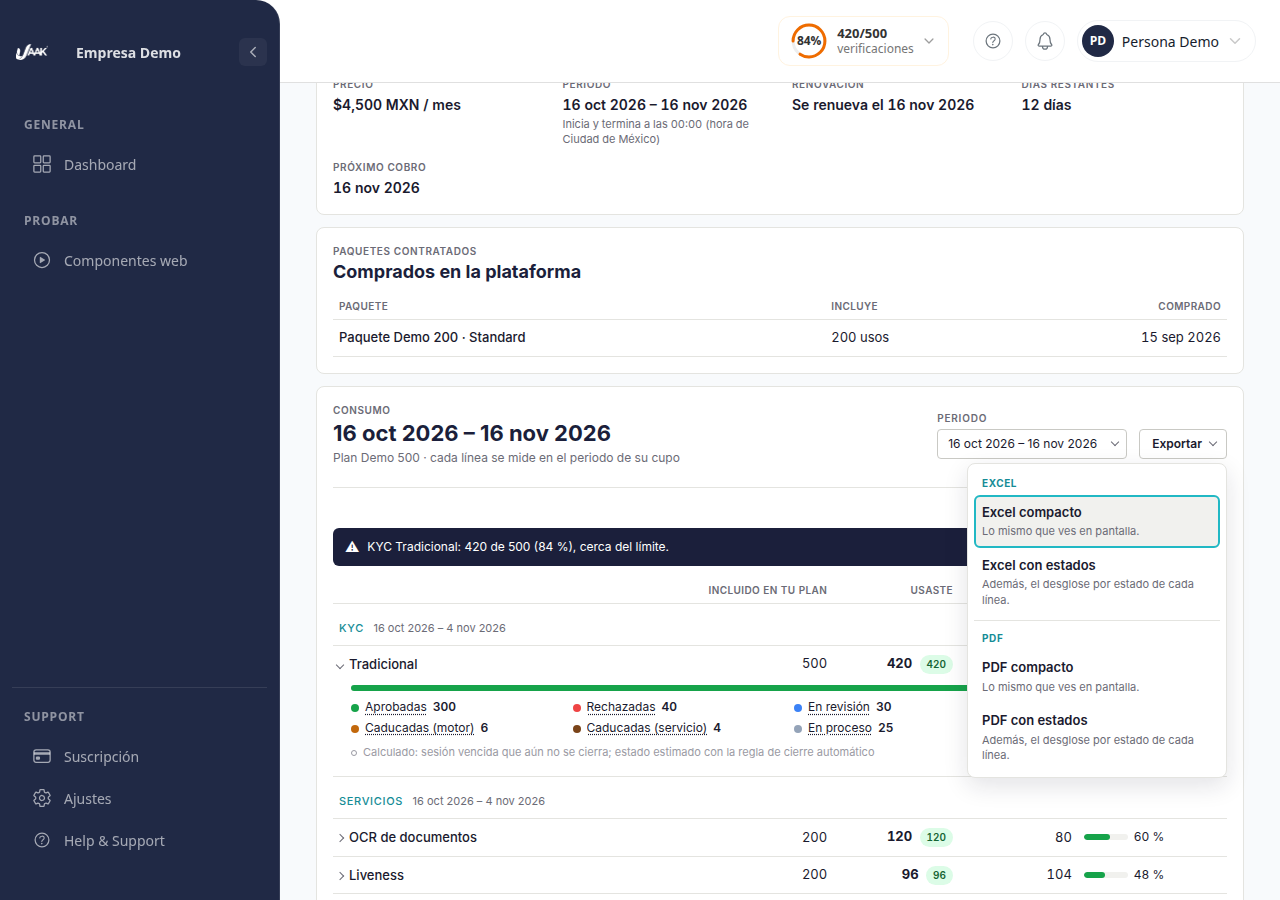
Outcome: downloading the file. Your header includes the title Consumption, Reporting period, Date of cut, Loan package and the time of Mexico City. If the table has packets, report them as well, and at Excel they appear on a sheet called PackagesIf there's an active notice, report includes as Warning.