
Tracking and evidence
After you send a document, you can follow its progress from Documentos (Documents). In the detail you find the status of each signer, you can resend notices and you can download the evidence of the process.
Document list
Open Documentos (Documents). The screen shows the document name, the template, the status, the signing progress (for example, 1 de 2) and the creation date.
You can search by text and filter by:
- Estado (Status): Pendiente (Pending), Completado (Completed), Rechazado (Rejected), Expirado (Expired), Cancelado (Cancelled), Archivado (Archived) and Fallido (Failed).
- Tipo (Type): the signature type of the document.
- Plantilla (Template).
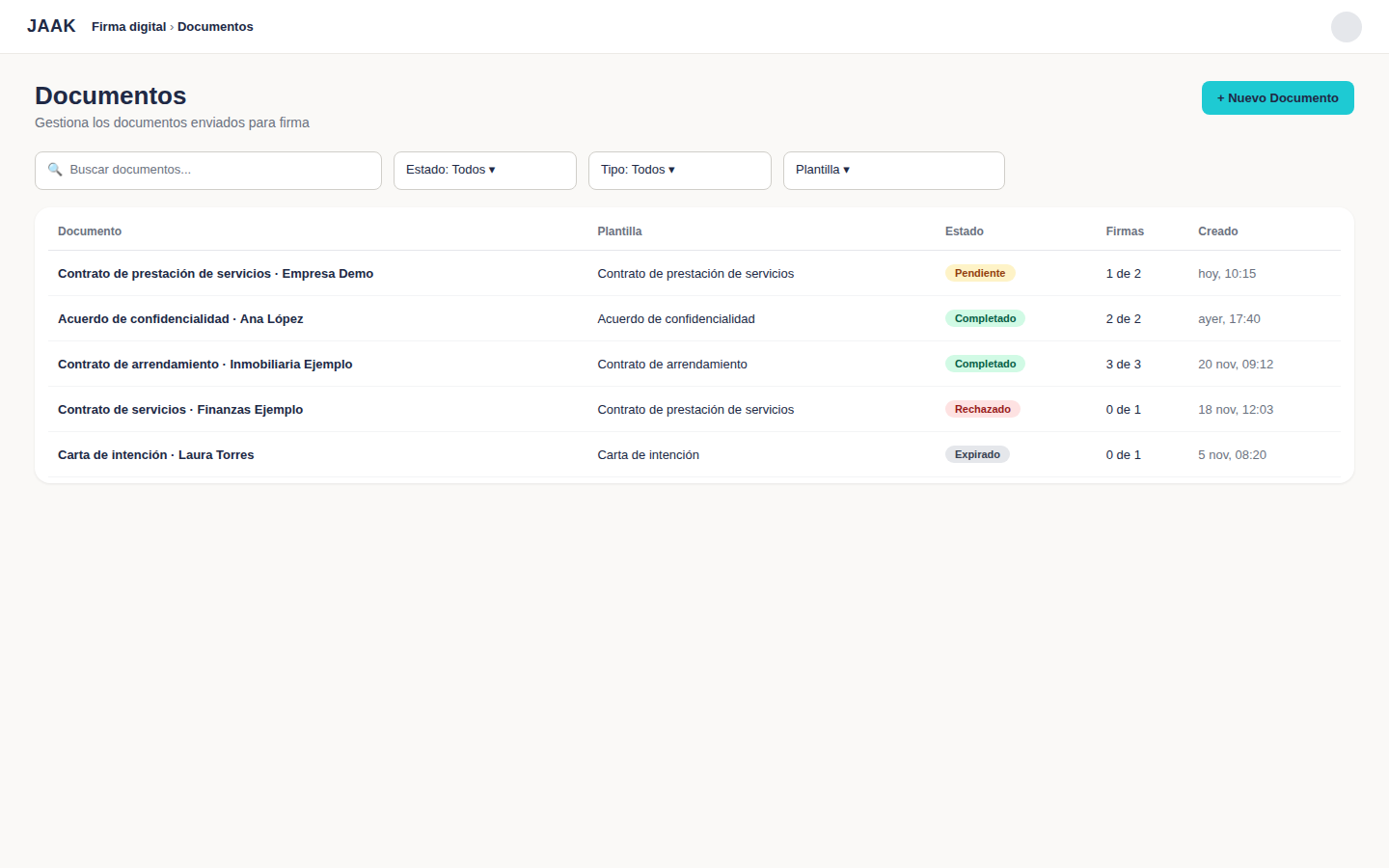
Illustrative screenshot with fictitious data.
Document detail
Click a document to open its detail. The screen has three main parts.
General information
It shows the document ID, the Origen (Origin), the dates Creado (Created), Actualizado (Updated), Completado (Completed) and Expira (Expires), the Plantilla (Template) with the Ver plantilla (View template) link and, if Signa recognizes it, the Empresa detectada (Detected company). If all the signers belong to the same company, the screen says so; if there is no company, you can use Asociar a empresa (Associate company).
Signers
For each signer you see their status:
| Status | Meaning |
|---|---|
| Pendiente (Pending) | Has not signed yet. |
| Enviado (Sent) | Received the notice. |
| Abierto (Opened) | Opened the signing link. |
| Completado (Completed) | Finished their part. |
| Rechazado (Rejected) | Rejected the signature. |
| Expirado (Expired) | The link expired. |
| Cancelado (Cancelled) | The send was cancelled. |
For a signer who verifies their identity, the screen also shows La verificación biométrica está en proceso (Biometric verification in progress) or Identidad verificada, falta su firma (Identity verified, signature pending). If the maximum number of verification attempts was reached, Se alcanzaron los intentos máximos de verificación appears.
From the signer's row you can:
- Editar correo electrónico (Edit email): correct the signer's email.
- Editar teléfono y reenviar por SMS o WhatsApp (Edit phone and resend by SMS or WhatsApp): correct the phone and send the notice again through the channel you choose.
- Reenviar solicitud (Resend request): appears for signers with biometric verification, when the request must be sent again.
Copying the signing link
Copiar enlace (Copy link) copies the signing link of the document to the clipboard. Share it only with the right person: anyone with the link can open the document.
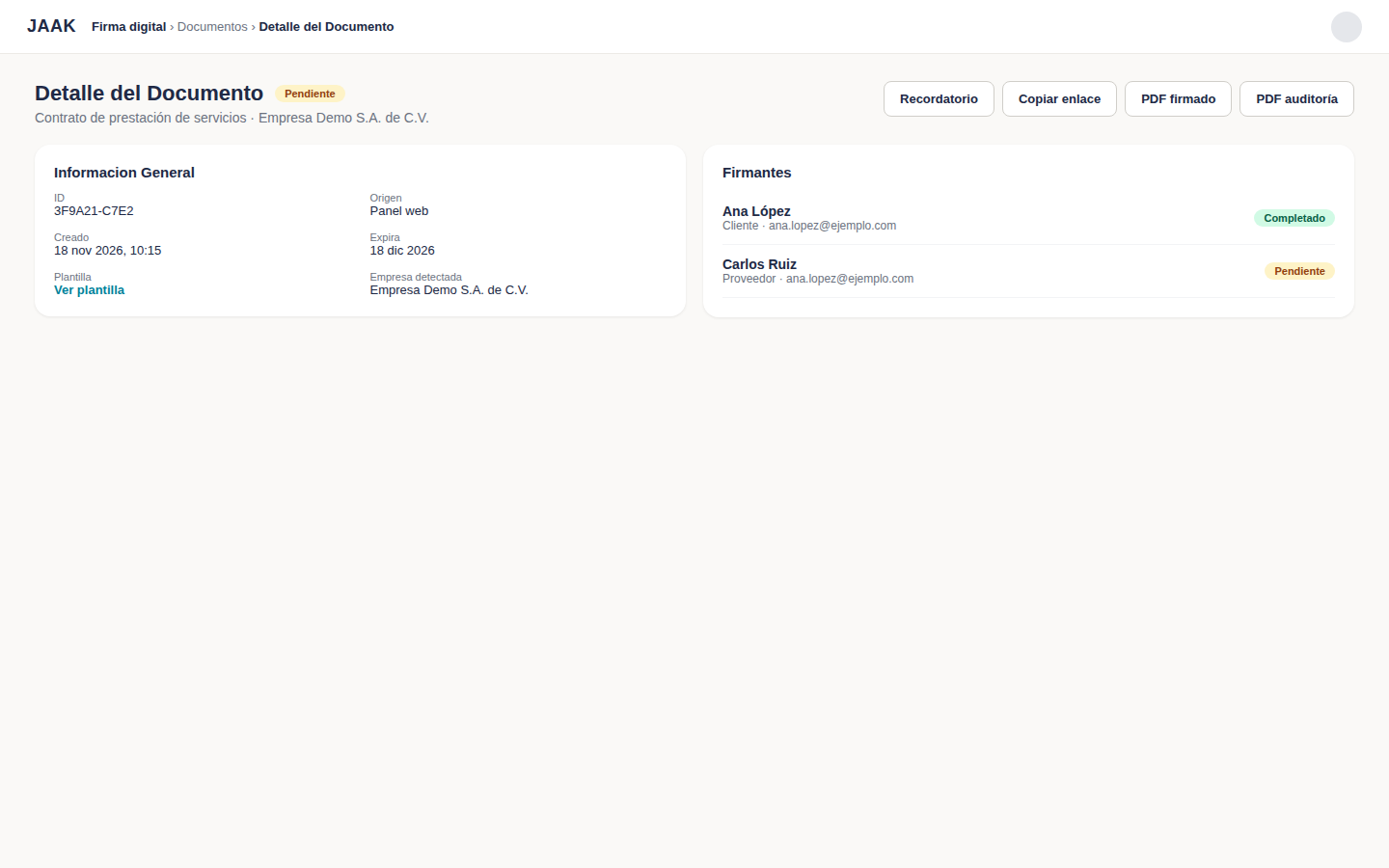
Illustrative screenshot with fictitious data.
Actions
In the header of the detail you find:
- Recordatorio (Reminder): sends a reminder so that a pending signer completes their signature.
- Copiar enlace (Copy link): copies the signing link.
- PDF firmado (Signed PDF): downloads the document with the signatures applied.
- PDF auditoría (Audit PDF): downloads the PDF with the audit record.
- Ver documento (View document): opens the document.
- Cancelar Documento (Cancel document): cancels the send. Use it only if the document should no longer be signed.
Evidence
The evidence section gathers what you need to show how the document was signed. The screenshot shows each part.
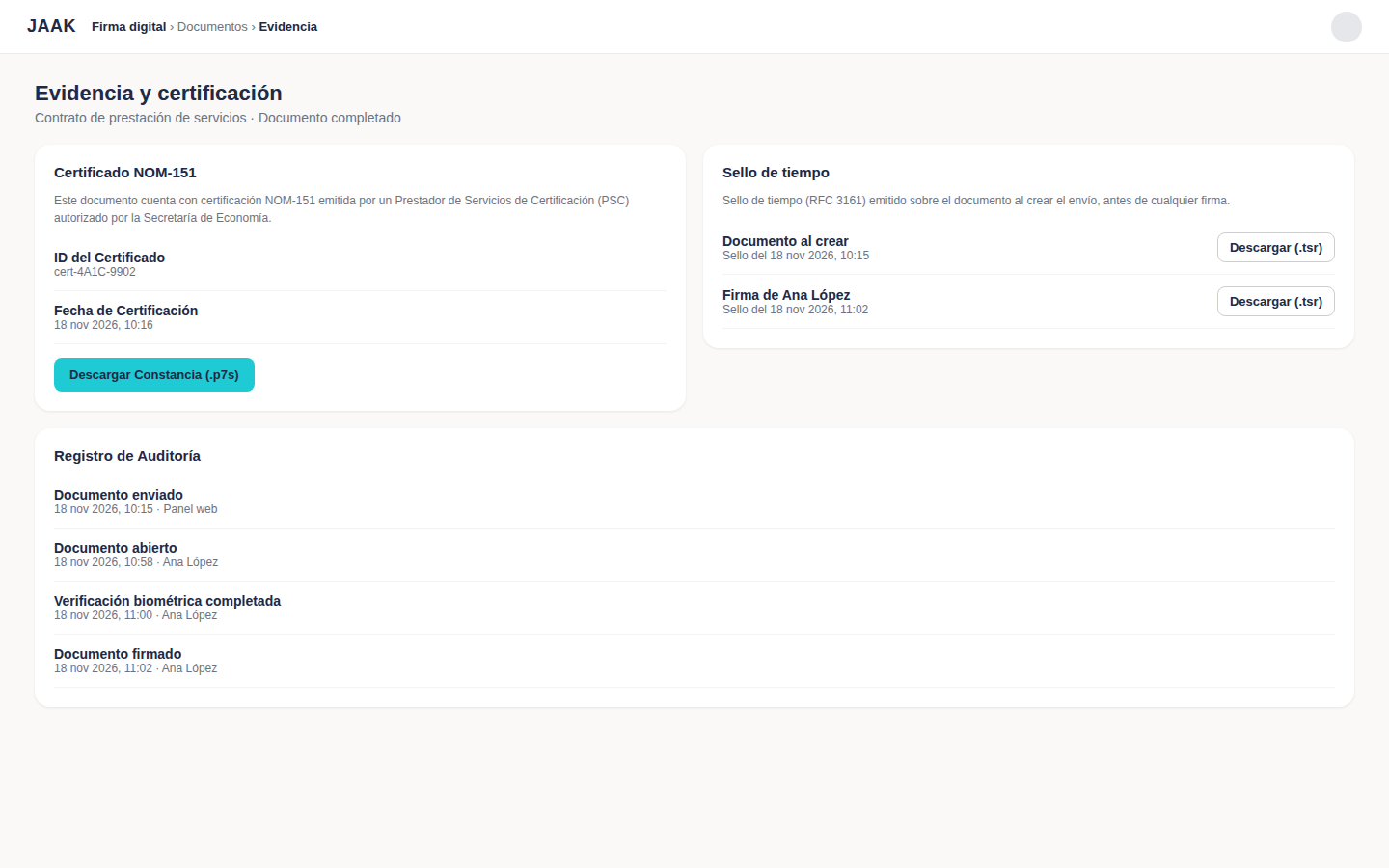
Illustrative screenshot with fictitious data.
Audit record
It is the list of events of the document, with date, time and person: document sent, document opened, verification completed, signature applied, and others. If there are no events yet, the section shows No hay eventos de auditoria (No audit events).
Integrity seal
It identifies the document and its signature: the ID de Documento (Document ID), the Hash de Verificación (Verification hash), the Tipo de Firma (Signature type) and the Sello de Tiempo (Time stamp). It helps you confirm that the document did not change after it was signed.
NOM-151 certificate
If the document has NOM-151 certification, the section shows the ID del Certificado (Certificate ID) and the Fecha de Certificación (Certification date). Descargar Constancia (.p7s) (Download certificate) downloads the certificate. The screen states that the certification is issued by a Certification Service Provider (PSC) authorized by the Secretaría de Economía (Mexican Ministry of Economy).
Time stamps
- Sello de tiempo al crear el envío (Time stamp when the send was created): a stamp (RFC 3161) on the document at the moment the send was created, before any signature. It is downloaded with Descargar (.tsr).
- Sellos de tiempo por firmante (Time stamps per signer): one stamp for each signer, issued at the moment they apply their signature. Each one is also downloaded as a
.tsrfile.
The time stamp sections appear according to the configuration of the document. See Create a template with the manual editor.
What to download and when
| You need | Download |
|---|---|
| The contract with all the signatures | PDF firmado (Signed PDF) |
| The record of who did what and when | PDF auditoría (Audit PDF) |
| The NOM-151 certificate | Descargar Constancia (.p7s) |
| To verify the stamp of a specific moment | Descargar (.tsr) of the matching stamp |